
Toolbar Config
If you first-time use wangEditor, please see Get Started it to learn basic usage.
import { IToolbarConfig } from '@wangeditor-next/editor'

const toolbarConfig: Partial<IToolbarConfig> = {   // TS syntax
// const toolbarConfig = {                         // JS syntax
    /* your toolbar config */
}

// create toolbar, or Vue React <Toolbar>
getConfig
Use toolbar.getConfig() to checkout default toolbar config.
If you use Vue or React, you can get toolbar instance by these codes.
import { DomEditor } from '@wangeditor-next/editor'
const toolbar = DomEditor.getToolbar(editor)
toolbarKeys
Rewrite toolbar menus, re-order and re-group.
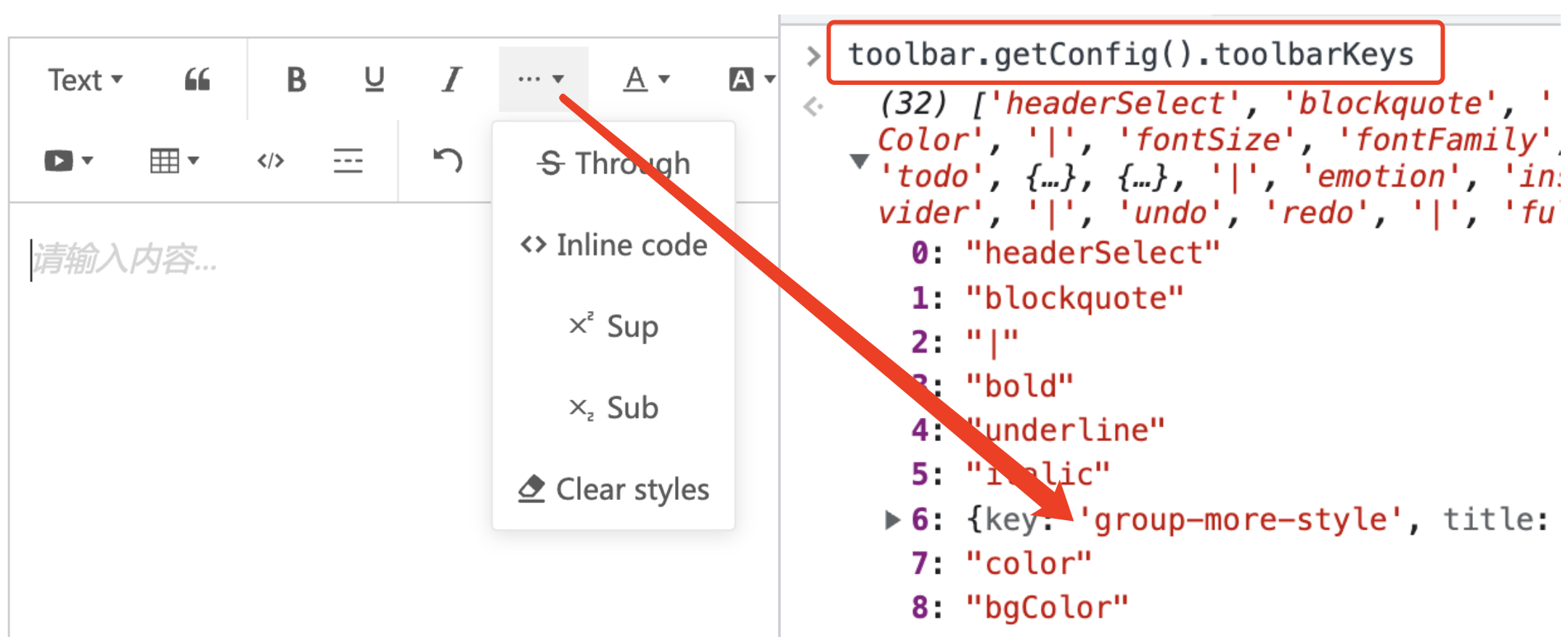
toolbar.getConfig().toolbarKeyscheckout defaulttoolbarKeysconfig.editor.getAllMenuKeys()checkout all embedded menu keys.
toolbarConfig.toolbarKeys = [
  // menu key
  'headerSelect',

  // split line
  '|',

  // menu key
  'bold',
  'italic',

  // menu group, includes many menu
  {
    key: 'group-more-style', // required, must start with `group-`
    title: 'more', // required
    iconSvg: '<svg>....</svg>', // optional
    menuKeys: ['through', 'code', 'clearStyle'] // required, children menu keys
  },
  // other menu keys...
]
insertKeys
You can continue to insert new menus based on the current toolbarKeys, such as custom extended menus
toolbarConfig.insertKeys = {
  index: 5, // The insertion position is based on the current toolbarKeys
  keys: ['menu-key1', 'menu-key2']
}
insertKeys supports multiple insertion positions。
toolbarConfig.insertKeys = [
  {
    index: 5,
    keys: ['menu-key1', 'menu-key2']
  },
  {
    index: 10,
    keys: ['menu-key3', 'menu-key4']
  }
]
insertKeys supports rewriting menus at specified locations, such as:
toolbarConfig.insertKeys = [
  {
    index: 5,
    keys: [],
    /** optional item, rewrite menu config */
    replaceFn: (menu) => { /** Menu configuration with index=5 */
      return menu; /** A new configuration must be returned that meets the configuration requirements */
    }
  }
]
In cases where there are both insertion and rewriting menus, priority should be given to executing modifications before inserting, such as:
toolbarConfig.insertKeys = [
  {
    index: 5,
    keys: ['menu-key1'], /** Perform insertion again */
    replaceFn: (menu) => { /** Perform modifications first */
      return menu; /** A new configuration must be returned that meets the configuration requirements */
    }
  }
]
TIP
Note: insertKeys modifies the array of menu configurations, so when modifying multiple menus, you need to pay attention to the array index.
excludeKeys
You may only want to exclude some menus, and keep the rest.
toolbarConfig.excludeKeys = [
  'headerSelect',
  'italic',
  'group-more-style' // exclude menu-group
]
If you want to exclude a menu group, you can find it's key by toolbar.getConfig().toolbarKeys
TIP
In the editor.onCreated life cycle, the toolbar instance has not been created yet, so the toolbar instance cannot be obtained in created.
modalAppendToBody
You may want to append the modal when a menu clicked to <body>, and custom its position style.
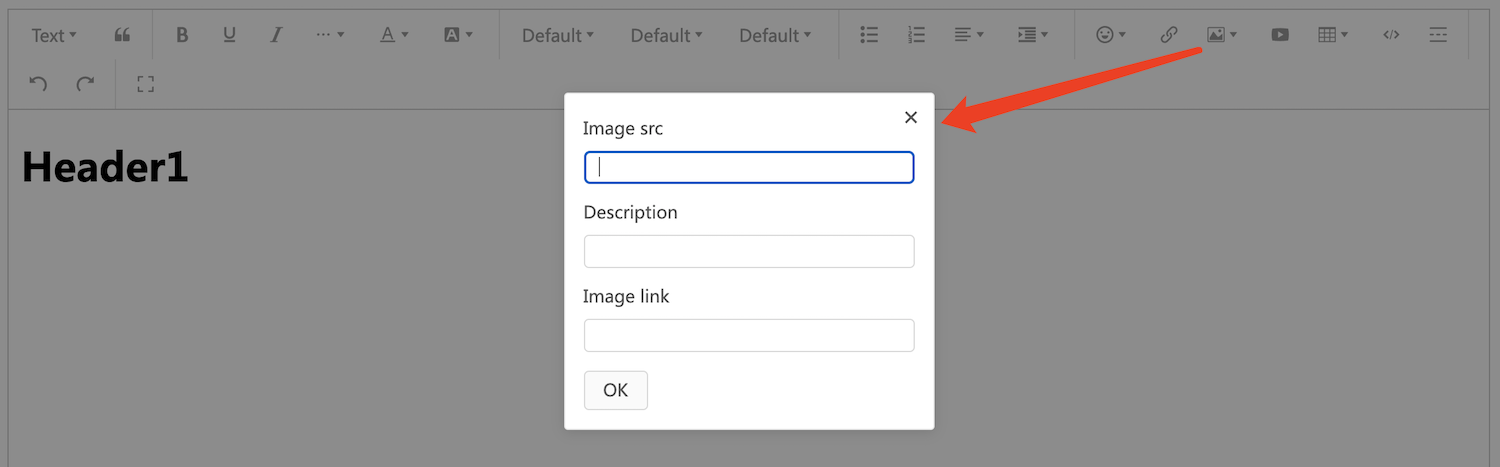
toolbarConfig.modalAppendToBody = true

// Create toolbar and editor

// Observe `modalOrPanelShow` and `modalOrPanelHide` custom event, then set modal style, and even you can show a mask <div>
editor.on('modalOrPanelShow', modalOrPanel => {
    if (modalOrPanel.type !== 'modal') return
    const { $elem } = modalOrPanel // modal element

    // set modal style (position, z-index)
    // show a mask <div>
})
editor.on('modalOrPanelHide', () => {
    // hide your mask <div>
})
You could checkout example source code.