
Editor Config
If you first-time use wangEditor, please see Get Started it to learn basic usage.
import { IEditorConfig } from '@wangeditor-next/editor'

const editorConfig: Partial<IEditorConfig> = {  // TS syntax
// const editorConfig = {                       // JS syntax
    /* editor config */
}

// create editor, or Vue React <Editor> component
TIP
You can use editor.getConfig() to checkout editor's default config
placeholder
editorConfig.placeholder = 'Type your text'readOnly
Default value is false.
You can use editor.enable() and editor.disable() to toggle readOnly. see Editor API.
editorConfig.readOnly = trueautoFocus
Default value is true.
editorConfig.autoFocus = falsescroll
Default value is true. You can scroll editor area.
If you set false, do not set editor-container a fixed height, just set min-height.
editorConfig.scroll = falseTIP
When you need to set false?
- Editor height increases automatically
- Want a Google doc style, see Demo
textStyleMode
Configure text/paragraph style export mode.
editorConfig.textStyleMode = 'class' // 'inline' | 'class'inline(default): output inlinestyleclass: outputclass + data-w-e-*for strict CSP scenarios
For full usage and migration guidance, see CSP Class Style Mode.
classStylePolicy
When textStyleMode = 'class', configure how unsupported tokens are handled.
editorConfig.classStylePolicy = 'preserve-data'
// 'preserve-data' | 'fallback-inline' | 'strict'preserve-data(default): keepdata-w-e-*fallback-inline: fallback to inline stylestrict: throw error directly
styleClassTokens
Register extra accepted tokens for class mode.
editorConfig.styleClassTokens = {
    color: ['rgb(1, 2, 3)'],
    fontSize: ['20px'],
}
TIP
styleClassTokens only registers tokens, it does not inject your custom CSS.
onClassStyleUnsupported
Callback for unsupported tokens in class mode.
editorConfig.onClassStyleUnsupported = payload => {
    // payload: { type, value, scene, fallback, message }
    console.warn(payload)
}
maxLength onMaxLength
See demo.
import { IDomEditor } from '@wangeditor-next/editor'

editorConfig.maxLength = 1000
editorConfig.onMaxLength = function (editor: IDomEditor) {   // TS syntax
// editorConfig.onMaxLength = function (editor) {            // JS syntax
    // trigger this when exceed maxlength
}
TIP
If you have no strong demand, do not set maxLength.
Cause it may affect performance when text is too large.
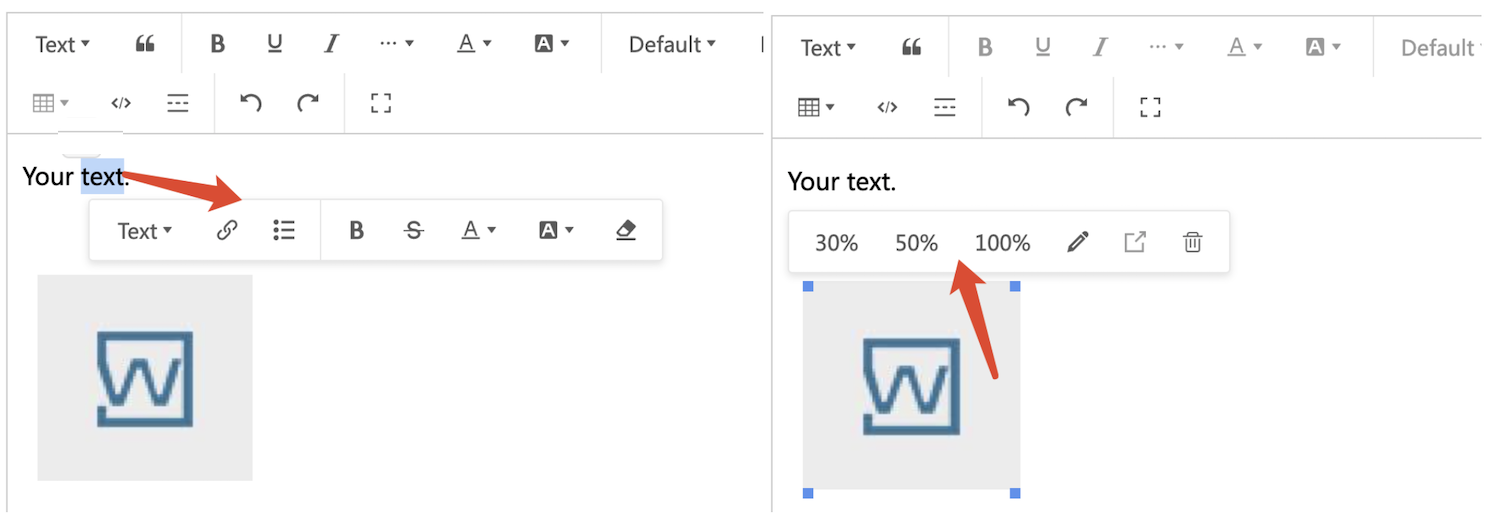
hoverbarKeys
You can use editor.getConfig().hoverbarKeys to checkout default config.
TIP
If you only unwanted hoverbar when select text, set mode: 'simple' when creating editor
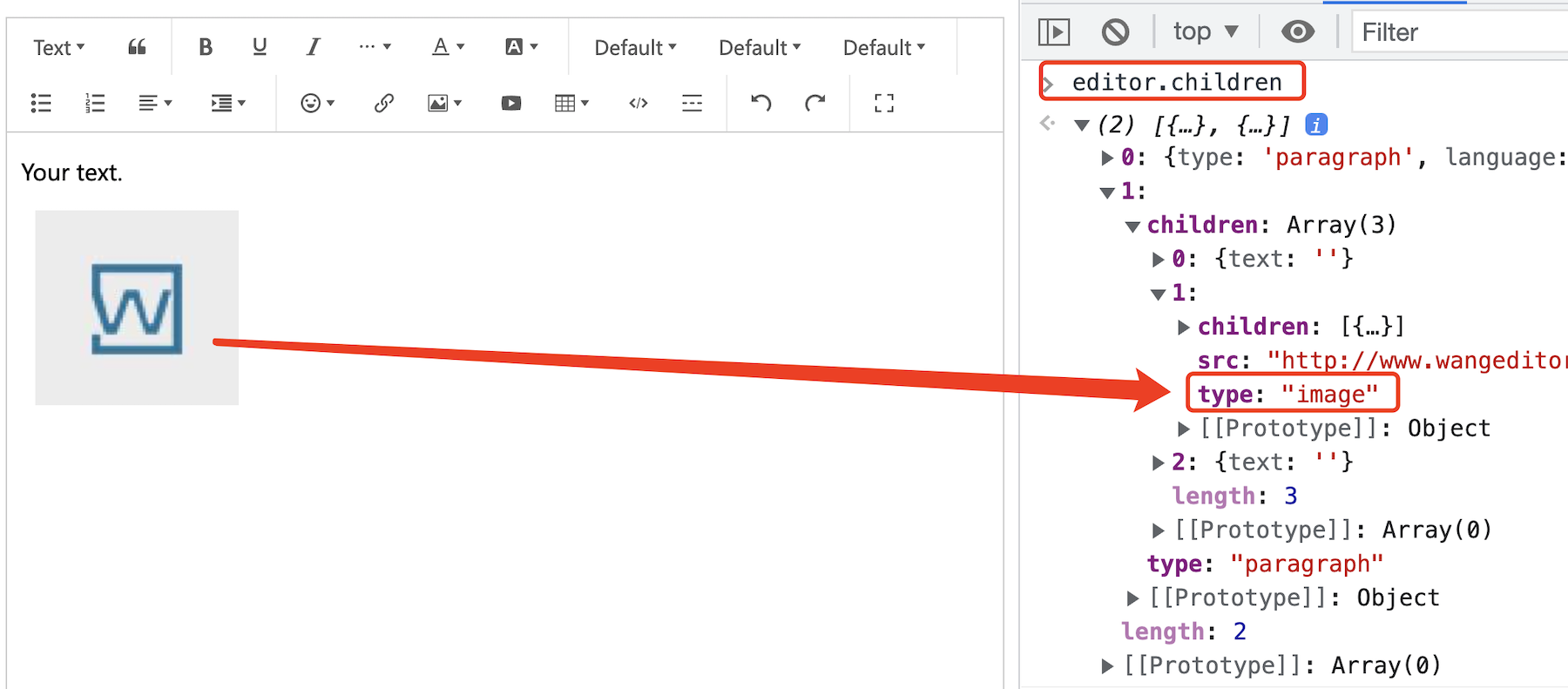
Use element type
You can config hoverbar menu keys by element type.
- You can checkout every element's type by
editor.children, see the picture below - You can use
editor.getAllMenuKeys()to checkout all embedded menu keys
editorConfig.hoverbarKeys = {
    'link': {
        // rewrite link element's hoverbar
        menuKeys: ['editLink', 'unLink', 'viewLink'],
    },
    'image': {
        // clear image element's hoverbar
        menuKeys: [],
    },
    // others...
}
Custom match function
You can also custom a match function instead of use element type.
import { SlateNode, IDomEditor } from '@wangeditor-next/editor'

editorConfig.hoverbarKeys = {
    'text': {
        match: (editor: IDomEditor, n: SlateNode) => {    // TS syntax
        // match: (editor, n) => {                        // JS syntax
            // match your node exactly
        },
        menuKeys: [ ... ], // custom your menu keys
    },
    // others...
}
You can see source code of all default hoverbar keys config.
onCreated
import { IDomEditor } from '@wangeditor-next/editor'

editorConfig.onCreated = (editor: IDomEditor) => {   // TS syntax
// editorConfig.onCreated = (editor) => {            // JS syntax
    // editor created
}
onChange
import { IDomEditor } from '@wangeditor-next/editor'

editorConfig.onChange = (editor: IDomEditor) => {  // TS syntax
// editorConfig.onChange = (editor:) => {             // JS syntax
    // editor's content or selection changed
    console.log('content', editor.children)
}
onDestroyed
You can use editor.destroy() to destroy editor. see API.
import { IDomEditor } from '@wangeditor-next/editor'

editorConfig.onDestroyed = (editor: IDomEditor) => {  // TS syntax
// editorConfig.onDestroyed = (editor) => {           // JS syntax
    // editor destroyed
}
onFocus
import { IDomEditor } from '@wangeditor-next/editor'

editorConfig.onFocus = (editor: IDomEditor) => {  // TS syntax
// editorConfig.onFocus = (editor) => {           // JS syntax
    // editor focused
}
onBlur
import { IDomEditor } from '@wangeditor-next/editor'

editorConfig.onBlur = (editor: IDomEditor) => {  // TS syntax
// editorConfig.onBlur = (editor) => {           // JS syntax
    // editor blur
}
customPaste
You can prevent default paste event, redefine your custom paste logic.
import { IDomEditor } from '@wangeditor-next/editor'

editorConfig.customPaste = (editor: IDomEditor, event: ClipboardEvent): boolean => {  // TS syntax
// editorConfig.customPaste = (editor, event) => {                                    // JS syntax

    // event is ClipboardEvent type, see https://developer.mozilla.org/zh-CN/docs/Web/API/ClipboardEvent

    // const html = event.clipboardData.getData('text/html') // get paste html
    // const text = event.clipboardData.getData('text/plain') // get paste text
    // const rtf = event.clipboardData.getData('text/rtf') // get paste rtf data (word, wsp...)

    // insert your custom text (sync)
    editor.insertText('xxx')

    // insert your custom text (async)
    setTimeout(() => {
        editor.insertText('yy')
    }, 1000)

    // 1. prevent default paste event.
    event.preventDefault()
    return false

    // 2. continue default paste event.
    // return true
}
customCopy
Custom copy can modify the editor's copy results.
import { IDomEditor } from '@wangeditor-next/editor'

editorConfig.customCopy = (editor: IDomEditor, event: ClipboardEvent): void => {     // TS syntax
// editorConfig.customCooy = (editor, event) => {                                       // JS syntax
    const originalText = event.clipboardData.getData('text/plain');
    const originalHtml = event.clipboardData.getData('text/html');
   // Modify or expand content
    const modifiedText = `${originalText}\n---\nAdded text`;
    const modifiedHtml = `${originalHtml}<hr><p>Added HTML content</p>`;
    // Write the modified content back to the clipboard
    event.clipboardData.setData('text/plain', modifiedText);
    event.clipboardData.setData('text/html', modifiedHtml);
}
customAlert
Redefine your custom editor alert.
import { message } from 'antd'

editorConfig.customAlert = (s: string, t: string) => {   // TS syntax
// editorConfig.customAlert = (s, t) => {                // JS syntax
    switch (t) {
        case 'success':
            message.success(s)
            break
        case 'info':
            message.info(s)
            break
        case 'warning':
            message.warning(s)
            break
        case 'error':
            message.error(s)
            break
        default:
            message.info(s)
            break
    }
}
EXTEND_CONF
Use in third-party plugin, like mention plugin.